How to Take Background Out of a Picture for Free
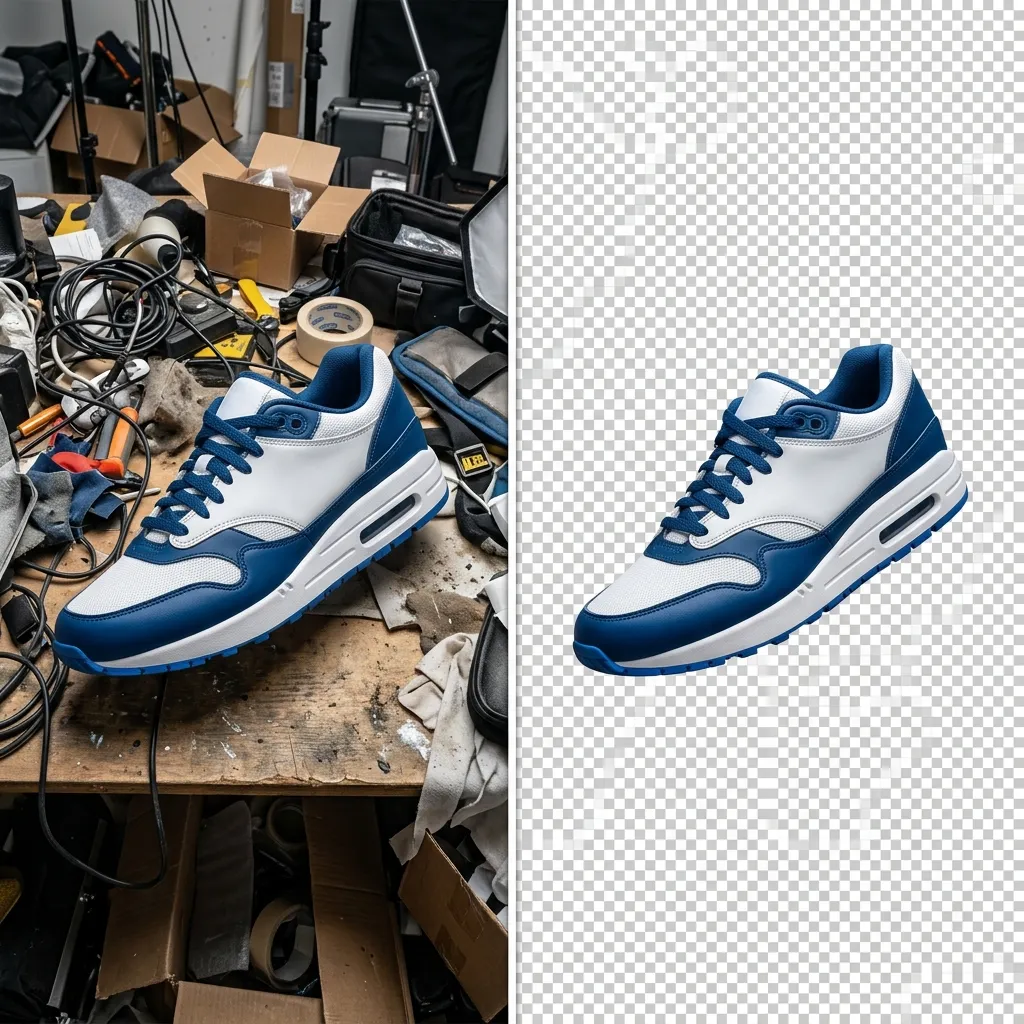
You just photographed your latest product on a cluttered kitchen counter. The item itself looks absolutely great, but the messy background completely ruins the professional aesthetic you desperately need for your Shopify store. A clean white or transparent background would instantly transform it into a premium-looking listing.
Whether you need to extract a subject for an online store, isolate a headshot for a resume, or create a transparent sticker for a presentation, knowing how to take a background out of a picture is a game-changer. Today, AI-powered browser tools have fundamentally democratized this process. Anyone can now extract a subject from a photograph and get professional, agency-quality results in less than five seconds, for completely free, without installing a single piece of software on their computer.
What Does It Mean to Remove an Image Background?
To appreciate how fast this technology has evolved, you must understand what is actually happening technically when you remove a background.
When you upload a photo, a specialized AI machine learning model instantly scans the image to detect the primary "subject" (whether that is a person, a physical product, an animal, or a specific object). The algorithm mathematically separates those subject pixels from the surrounding background pixels. The output is a PNG file with a transparent background (known as an alpha channel). When you view this file in an image editor, the transparent areas display as a classic gray-and-white checkerboard pattern. Once the background is stripped, you have complete creative freedom to place your subject onto a pure white canvas, a vibrant gradient, or even drop it seamlessly into another photograph.
Top Use Cases for Free Background Removal
Because this tool is now universally accessible, it has become a daily staple for a wide variety of professionals and casual users:
- E-commerce Sellers: Marketplaces like Amazon, Etsy, and Shopify strictly require or heavily favor pure white, distraction-free backgrounds for all primary product photos to ensure visual consistency across the platform.
- Professionals: Updating a LinkedIn profile or a company "Meet the Team" page often requires extracting a headshot from an amateur photo and placing it on a branded corporate background.
- Graphic Designers: Constantly needing to extract people, objects, and textures from stock photos to composite them into larger advertising designs or website banners.
- Social Media Creators: YouTubers heavily rely on transparent cutouts of their faces for dramatic video thumbnails. Instagram and TikTok creators use cutouts as digital stickers in their daily Stories.
- Presentation Makers: Dropping an isolated product or person onto a colored slide background in PowerPoint or Google Slides looks infinitely more professional than pasting a square photo with a mismatched background.
The Privacy Risk of Popular Online Tools
While AI background removal is incredibly convenient, the vast majority of users are entirely unaware of the severe privacy risks associated with the most popular tools on the market.
Almost all major online background removers operate by uploading your photos to their remote backend servers to process the AI algorithm. For example:
- remove.bg: Their privacy policy explicitly states that your images are uploaded to their cloud servers and stored for up to 24 hours.
- Canva: Requires a user account and permanently uploads your raw photos into Canva's cloud infrastructure.
- Mobile Apps: The vast majority of free app-store background removers quietly upload your photos to unknown third-party servers, and frequently bury clauses in their terms of service allowing them to use your personal photos to further train their AI models.
The NoStorePDF Background Remover solves this massive privacy gap. It uses a state-of-the-art local AI model that runs entirely within your web browser. There is absolutely zero upload. Your photos are processed using your computer's own memory, and they never leave your physical device.
Caveat: To achieve this 100% local, private processing, the very first time you use the tool, your browser must download the underlying AI model. Once the model is securely cached in your browser, every subsequent background removal will happen instantly, offline, and completely privately.
Step-by-Step: How to Remove Background From Image
Achieving a flawless, transparent cutout takes seconds. Here is exactly how to do it using our free tool:
- Access the Tool: Open the NoStorePDF Background Remover in any modern web browser.
- Load the Image: Drag and drop your JPG or PNG photo directly into the interface.
- Local Processing: The AI will instantly analyze the pixels locally. Because there is no upload happening, you do not have to wait for a server response or queue time.
- Preview: Review the result on your screen to ensure the subject was cleanly separated from the background.
- Download: Save the final result to your computer as a PNG file (the format required to preserve the transparent alpha channel).
What to Do With Your Cutout
Once you have your transparent PNG, you will likely need to format it for your specific platform. Here is how to complete your workflow:
- For E-commerce (White Background): Open your new transparent PNG in literally any image editor and simply paste it onto a solid white canvas. Alternatively, use a PNG to JPG converter to automatically force a white background.
- For Fast Web Loading: Transparent PNGs can be quite large. Run your new file through an Image Compressor to reduce the file size for faster website loading.
- For Exact Dimensions: If a platform requires a specific pixel dimension, use a Resize Image tool to perfectly scale your cutout before uploading.
Frequently Asked Questions
What file format should I download after removing a background?
You must download the result as a PNG (or a WebP). Standard JPG files do not mathematically support transparency (the alpha channel). If you try to save a cutout as a JPG, the transparent areas will automatically turn into a solid white block.
Can I add a white background after removing the original?
Yes. Once you have the transparent PNG, you can open it in any basic image editor and paste it onto a white background. Alternatively, you can convert the transparent PNG to a JPG using an online converter, which will automatically force the transparent background to become solid white.
Will background removal reduce my main image quality?
No. The AI specifically targets and erases the background pixels, leaving the main subject's pixels entirely untouched. The visual quality, resolution, and sharpness of your actual subject will remain completely identical to the original photo.
Conclusion
You no longer need to sacrifice your data privacy to cloud servers just to get a clean product photo or a professional LinkedIn headshot. Now, anyone can achieve flawless, transparent cutouts in seconds, right on their own device, for absolutely nothing. Bookmark the NoStorePDF Background Remover today to streamline your workflow instantly.