Back to all articles
GuideTerminology
PDF Merge vs PDF Combine: The Difference
D
Document Specialist
June 10, 2026
7 min read
Is there a difference between merging and combining PDFs? We break down the terminology and show you the best tool for the job.
If you've ever searched for a way to join multiple PDF files together, you've probably come across two common terms:
- PDF Merge
- PDF Combine
At first glance, they seem like different features. Some tools offer a "Merge PDF" option, while others use the term "Combine PDF."
This often leads users to wonder: Is there actually a difference between PDF Merge and PDF Combine?
The short answer is: In most cases, no.
Both terms generally refer to the same process: joining multiple PDF documents into a single PDF file.
However, there are a few subtle differences in how some software providers use these terms. In this guide, we'll explain exactly what PDF merging and PDF combining mean, when to use them, and how to choose the best method for your workflow.
<h2>What Does PDF Merge Mean?</h2>
<p>PDF Merge typically refers to taking multiple PDF documents and joining them into one file.</p>
<p>For example:</p>
<div class="bg-light p-3 rounded-3 mb-3 border font-monospace small">
Document 1 → Contract<br>
Document 2 → Terms & Conditions<br>
Document 3 → Signature Page
</div>
<p>After merging:</p>
<div class="bg-light p-3 rounded-3 mb-3 border font-monospace small">
Final Output → Complete Contract Package.pdf
</div>
<p>All pages are placed in the chosen order and exported as a single PDF.</p>
<h3>Common Uses of PDF Merge</h3>
<ul>
<li>Combining reports</li>
<li>Joining invoices</li>
<li>Creating proposal packages</li>
<li>Merging scanned documents</li>
<li>Combining assignments</li>
<li>Organizing business records</li>
</ul>
<p>PDF Merge is one of the most widely used PDF operations worldwide.</p>
<h2>What Does PDF Combine Mean?</h2>
<p>PDF Combine is often used interchangeably with PDF Merge.</p>
<p>The goal remains the same: Take multiple PDF files and create a single PDF document. Many software companies simply prefer the word "Combine" because it sounds more intuitive for non-technical users.</p>
<h3>Example</h3>
<p>You have:</p>
<div class="bg-light p-3 rounded-3 mb-3 border font-monospace small">
January Report.pdf<br>
February Report.pdf<br>
March Report.pdf
</div>
<p>Combine them into:</p>
<div class="bg-light p-3 rounded-3 mb-3 border font-monospace small">
Quarterly Report.pdf
</div>
<p>The outcome is identical to PDF merging.</p>
<h2>Why Do Some Tools Use Different Terminology?</h2>
<p>Software vendors often use different wording for marketing purposes.</p>
<div class="table-responsive my-4">
<table class="table table-bordered">
<thead class="table-light">
<tr>
<th>Term</th>
<th>Meaning</th>
</tr>
</thead>
<tbody>
<tr>
<td>Merge PDF</td>
<td>Join PDF files</td>
</tr>
<tr>
<td>Combine PDF</td>
<td>Join PDF files</td>
</tr>
<tr>
<td>Join PDF</td>
<td>Join PDF files</td>
</tr>
<tr>
<td>Consolidate PDF</td>
<td>Join PDF files</td>
</tr>
</tbody>
</table>
</div>
<p>All of these generally perform the same operation. The underlying functionality remains unchanged.</p>
<h2>Is There Ever a Difference?</h2>
<p>In some advanced document management systems, there can be minor distinctions.</p>
<div class="row g-4 mb-4">
<div class="col-md-6">
<div class="p-4 border rounded-4 h-100 bg-light">
<h3 class="h5 fw-bold text-primary">PDF Merge</h3>
<p class="text-muted small mb-2">May imply:</p>
<ul class="small text-muted mb-0">
<li>Combining complete PDF files</li>
<li>Maintaining original file structures</li>
<li>Sequential page arrangement</li>
</ul>
</div>
</div>
<div class="col-md-6">
<div class="p-4 border rounded-4 h-100 bg-light">
<h3 class="h5 fw-bold text-success">PDF Combine</h3>
<p class="text-muted small mb-2">May imply:</p>
<ul class="small text-muted mb-0">
<li>Combining selected pages (e.g. after using <a href="/split-pdf">Split PDF</a>)</li>
<li>Combining different file types (e.g. <a href="/jpg-to-pdf">JPG to PDF</a>)</li>
<li>Combining documents into a new package</li>
</ul>
</div>
</div>
</div>
<p>However, for most online PDF tools, there is effectively no difference.</p>
<h2>How PDF Merging Works</h2>
<p>Most PDF merge tools follow a simple process.</p>
<ul>
<li><strong>Step 1: Upload or Select Files</strong> - Choose multiple PDF documents.</li>
<li><strong>Step 2: Arrange File Order</strong> - Drag files into the desired sequence.</li>
<li><strong>Step 3: Merge Documents</strong> - The tool combines all pages into one PDF.</li>
<li><strong>Step 4: Download Result</strong> - Save the merged file.</li>
</ul>
<p>Modern browser-based tools can even perform this process locally without uploading files to external servers.</p>
<h2>Benefits of Merging PDFs</h2>
<ul>
<li><strong>Better Organization:</strong> Keep related documents together.</li>
<li><strong>Easier Sharing:</strong> Send one file instead of multiple attachments. If it's too large, use a <a href="/compress-pdf">PDF Compressor</a>.</li>
<li><strong>Improved Professionalism:</strong> Clients and colleagues prefer receiving organized document packages.</li>
<li><strong>Simplified Storage:</strong> Managing one PDF is easier than managing ten separate files.</li>
</ul>
<h2>Common Use Cases</h2>
<p><strong>Business Reports:</strong> Combine cover pages, financial data, charts, and appendices into a single report.</p>
<p><strong>Legal Documentation:</strong> Merge contracts, agreements, and supporting documents into one organized file. Don't forget to <a href="/protect-pdf">Protect the PDF</a> before sharing.</p>
<p><strong>Academic Projects:</strong> Students often combine research papers, references, and supporting materials before submission.</p>
<p><strong>Human Resources:</strong> HR teams combine applications, resumes, and verification documents into one employee record.</p>
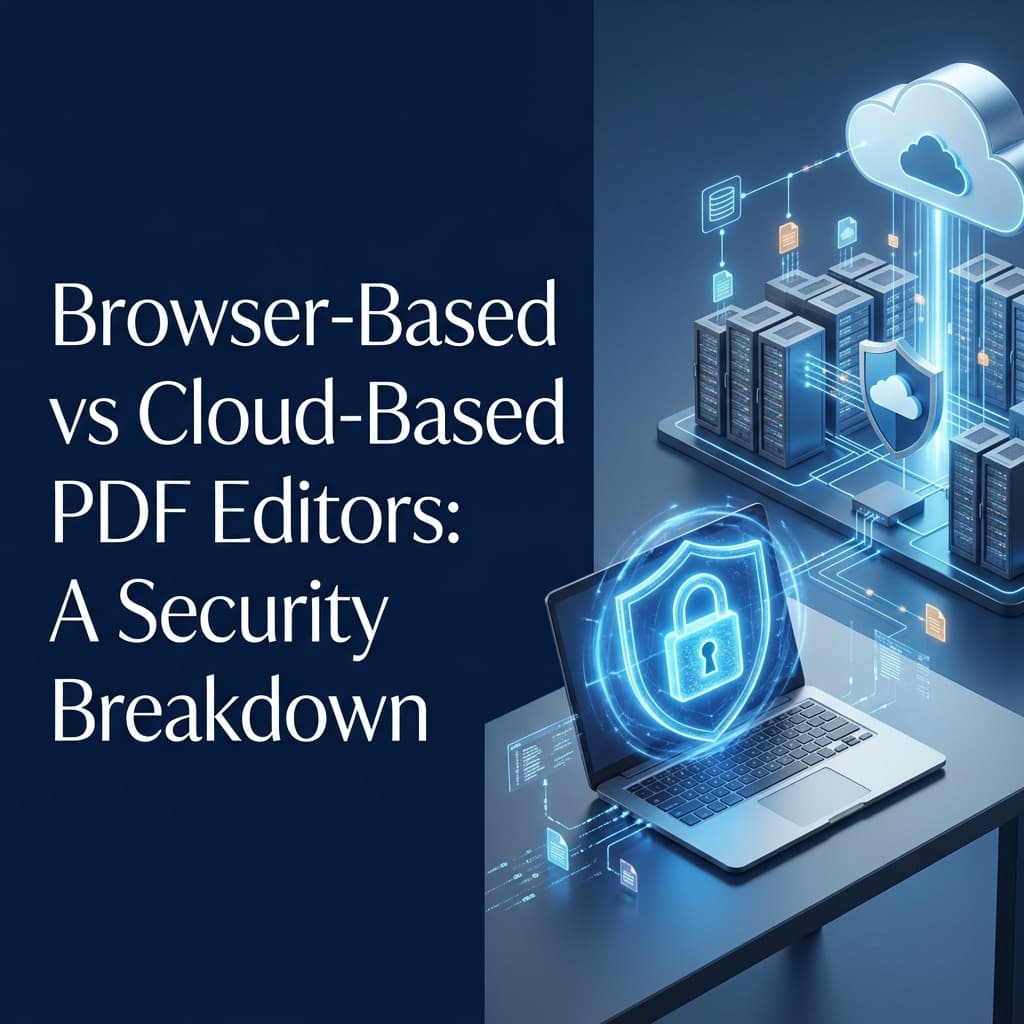
<h2>Browser-Based PDF Merge vs Cloud-Based Merge</h2>
<div class="row g-4 mb-4">
<div class="col-md-6">
<div class="p-4 border rounded-4 h-100">
<h3 class="h5 fw-bold">Browser-Based Merge</h3>
<ul class="mb-0">
<li>Files stay on your device</li>
<li>Better privacy</li>
<li>Faster for many workflows</li>
<li>Reduced security concerns</li>
</ul>
</div>
</div>
<div class="col-md-6">
<div class="p-4 border rounded-4 h-100">
<h3 class="h5 fw-bold">Cloud-Based Merge</h3>
<ul class="mb-0">
<li>Less device processing</li>
<li>Useful for extremely large files</li>
<li class="text-danger"><strong>Disadvantages:</strong> Files must be uploaded, potential privacy concerns</li>
</ul>
</div>
</div>
</div>
<p>Many users now prefer browser-based PDF tools because sensitive documents never leave their devices.</p>
<h2>Tips for Better PDF Merging</h2>
<ul>
<li><strong>Arrange Documents Carefully:</strong> Check the final order before exporting.</li>
<li><strong>Remove Duplicate Pages:</strong> Avoid unnecessary repetition.</li>
<li><strong>Compress Large Files:</strong> Reduce file size after merging if needed.</li>
<li><strong>Use Descriptive File Names:</strong> Makes future retrieval easier.</li>
</ul>
<h2>Frequently Asked Questions</h2>
<div>
<div class="mb-3 mt-4">
<h3 class="h5 fw-bold">Is PDF Merge different from PDF Combine?</h3>
<div>
<p>For most users, no. Both terms mean joining multiple PDF files into one document. The terminology depends purely on the marketing of the specific tool.</p>
</div>
</div>
<div class="mb-3">
<h3 class="h5 fw-bold">Will PDF quality change after merging?</h3>
<div>
<p>Typically no. PDF merging combines pages exactly as they are without reducing quality or re-rendering images.</p>
</div>
</div>
<div class="mb-3">
<h3 class="h5 fw-bold">Can I merge password-protected PDFs?</h3>
<div>
<p>Some tools support protected PDFs natively, while others require unlocking the document using an <a href="/unlock-pdf">Unlock PDF</a> tool first before the pages can be appended.</p>
</div>
</div>
<div class="mb-3">
<h3 class="h5 fw-bold">Can I reorder pages before merging?</h3>
<div>
<p>Yes. Most modern PDF merge tools, including browser-based ones, allow intuitive drag-and-drop page arrangement.</p>
</div>
</div>
<div class="mb-3">
<h3 class="h5 fw-bold">Is browser-based PDF merging secure?</h3>
<div>
<p>Yes. Because files are processed entirely locally on your device's memory, browser-based merging is the most secure method available, as files are never uploaded to an external server.</p>
</div>
</div>
</div>
<h2>Final Verdict</h2>
<p>For most practical purposes, <strong>PDF Merge</strong> and <strong>PDF Combine</strong> mean exactly the same thing. Both allow users to join multiple PDF files into a single document, making files easier to manage, share, and organize.</p>
<p>The more important consideration isn't whether a tool says "Merge" or "Combine." What matters is ease of use, processing speed, output quality, and most importantly, <strong>privacy protection</strong>.</p>
<p>If privacy is important, consider using browser-based PDF tools like <a href="/merge-pdf">NoStorePDF</a> that process documents locally and keep your files strictly on your device.</p>