Back to all articles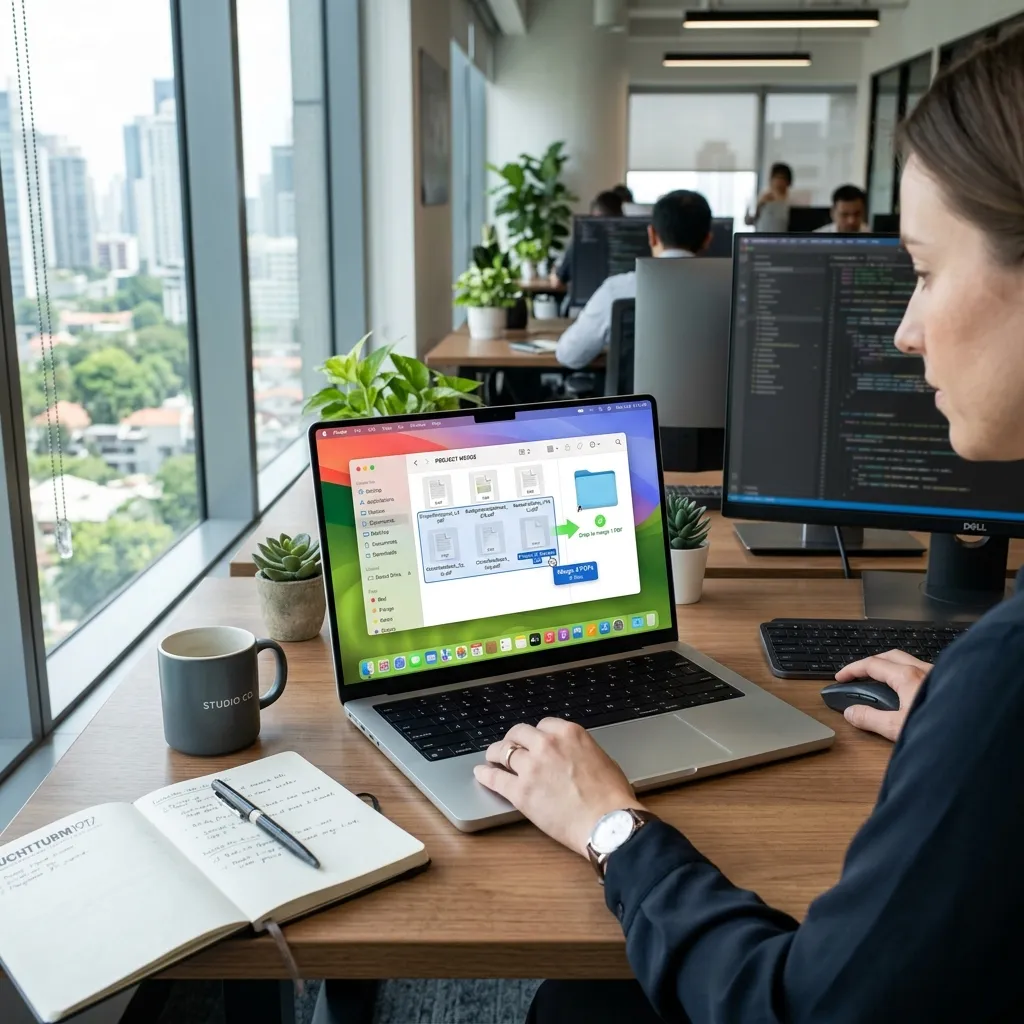
PrivacyPDF ToolsSecurity
How to Merge PDF Files Without Uploading
N
NoStorePDF Security Team
June 20, 2026
8 min read
Learn the safest way to combine multiple PDF documents into a single file completely offline using your web browser.
PDF files have become a standard format for sharing documents, reports, invoices, contracts, presentations, and forms. In many situations, you may need to combine multiple PDF files into a single document. Most people search for an online PDF merger, upload their files, merge them, and download the result.
However, there is one major concern that many users overlook:
What happens to your files after you upload them?
If your PDFs contain personal information, financial records, business documents, contracts, medical reports, or confidential data, uploading them to a third-party server may not always be the safest option.
This is why more users are now looking for ways to merge PDF files without uploading them online.
  <h2>Why Avoid Uploading PDFs to Online Servers?</h2>
  <p>Traditional online PDF tools usually work like this:</p>
  <ol>
    <li>Upload your PDF files</li>
    <li>Files are transferred to a remote server</li>
    <li>The server processes the files</li>
    <li>The merged PDF is generated</li>
    <li>You download the result</li>
  </ol>
  <p>Although this process is convenient, it comes with potential privacy concerns.</p>
  <p>Some common concerns include:</p>
  <ul>
    <li>Sensitive files stored temporarily on external servers</li>
    <li>Unclear data retention policies</li>
    <li>Potential security risks</li>
    <li>Compliance concerns for businesses</li>
    <li>Exposure of confidential information</li>
  </ul>
  <p>For personal documents, this may not be a major issue. However, businesses, freelancers, lawyers, accountants, healthcare professionals, and students often prefer more privacy-focused alternatives.</p>

  <h2>What Is Browser-Based PDF Merging?</h2>
  <p>Browser-based PDF merging allows your files to be processed directly on your device. Utilizing powerful technologies like <a href="/glossary">WebAssembly</a>, tools like the <a href="/merge-pdf">NoStorePDF Merge tool</a> run the underlying code natively in your browser.</p>
  <p>Instead of sending documents to a remote server:</p>
  <ul>
    <li>Files stay on your computer</li>
    <li>Processing happens inside your browser</li>
    <li>No document upload is required</li>
    <li>The merged PDF is generated locally</li>
  </ul>
  <p>This approach offers both convenience and uncompromising privacy.</p>

  <h2>Benefits of Merging PDFs Locally</h2>
  <h3>Better Privacy</h3>
  <p>Your documents never leave your device. This is especially useful when working with contracts, legal documents, financial reports, business proposals, internal company documents, and personal records.</p>

  <h3>Faster Processing</h3>
  <p>For many files, local processing can be dramatically faster because there is absolutely zero upload or download waiting time.</p>

  <h3>No Internet Dependency After Loading</h3>
  <p>Many browser-based tools can continue processing files locally once the application has loaded, meaning you can merge offline.</p>

  <h3>Reduced Security Risks</h3>
  <p>Since files are not transferred to external servers, the attack surface is significantly reduced, shielding you from data breaches.</p>

  <h2>When Should You Merge PDF Files?</h2>
  <p>PDF merging is highly useful across various situations.</p>
  <h3>Business Reports</h3>
  <p>Combine a cover page, executive summary, charts, and appendices into a single professional PDF.</p>
  <h3>Client Deliverables</h3>
  <p>Freelancers and agencies often combine multiple documents into one package before sending it to clients.</p>
  <h3>Academic Work</h3>
  <p>Students frequently merge assignments, research papers, and supporting documents into one PDF before submission.</p>
  <h3>Legal Documentation</h3>
  <p>Law firms often need to combine agreements, evidence, and supporting records into a single document package.</p>

  <h2>How to Merge PDF Files Without Uploading</h2>
  <p>Using a privacy-focused browser-based tool like NoStorePDF is incredibly simple.</p>
  <h3>Step 1: Select Your PDF Files</h3>
  <p>Choose all PDF files you want to combine by clicking the select button or dragging them onto the interface.</p>
  <h3>Step 2: Arrange the Order</h3>
  <p>Drag and reorder documents according to your preferred sequence.</p>
  <h3>Step 3: Preview the Result</h3>
  <p>Review the final document order before processing.</p>
  <h3>Step 4: Merge Files</h3>
  <p>Click the merge button. The browser combines the documents locally on your device in milliseconds.</p>
  <h3>Step 5: Download the Merged PDF</h3>
  <p>Save the final PDF directly to your computer.</p>

  <h2>Browser-Based PDF Merging vs Cloud-Based PDF Merging</h2>
  <div class="table-responsive my-4">
    <table class="table table-bordered">
      <thead class="table-light">
        <tr>
          <th>Feature</th>
          <th>Browser-Based (NoStorePDF)</th>
          <th>Cloud-Based</th>
        </tr>
      </thead>
      <tbody>
        <tr>
          <td>File Upload Required</td>
          <td><strong>No</strong></td>
          <td>Yes</td>
        </tr>
        <tr>
          <td>Data Leaves Device</td>
          <td><strong>No</strong></td>
          <td>Yes</td>
        </tr>
        <tr>
          <td>Privacy Protection</td>
          <td><strong>High</strong></td>
          <td>Medium</td>
        </tr>
        <tr>
          <td>Processing Speed</td>
          <td><strong>Instant (CPU bound)</strong></td>
          <td>Depends on Upload Speed</td>
        </tr>
        <tr>
          <td>Suitable for Sensitive Docs</td>
          <td><strong>Yes</strong></td>
          <td>Depends on Provider</td>
        </tr>
      </tbody>
    </table>
  </div>

  <h2>Tips for Better PDF Workflow</h2>
  <h3>Organize Files Before Uploading</h3>
  <p>Rename documents clearly before combining them to make sorting easier. It's often helpful to number them sequentially.</p>

  <h3>Remove Unnecessary Pages</h3>
  <p>Delete duplicate or irrelevant pages. You can use our <a href="/split-pdf">Split PDF</a> tool to extract exactly what you need before you <a href="/merge-pdf">Merge PDF</a> files together.</p>

  <h3>Optimize File Sizes</h3>
  <p>If the merged file becomes too large to email or upload elsewhere, consider shrinking it afterward. Use a local <a href="/compress-pdf">Compress PDF</a> utility to reduce the file size without losing quality.</p>

  <h3>Convert or Secure as Needed</h3>
  <p>Sometimes a PDF isn't the final format you need. You might want to extract pages as images using a <a href="/pdf-to-images">PDF to Images</a> converter. Or, if the merged document contains highly sensitive information, you should <a href="/protect-pdf">Protect PDF</a> files with a strong password before sending them to anyone.</p>

  <h2>Frequently Asked Questions</h2>
  <div>
    <div class="mb-3 mt-4">
      <h3 class="h5 fw-bold">How can I merge PDF without uploading?</h3>
      <div>
        <p>You can easily merge PDF without uploading by using a <strong>browser based PDF merger</strong> like NoStorePDF. It uses WebAssembly technology to process the files directly inside your device's memory, bypassing cloud servers entirely.</p>
      </div>
    </div>
    <div class="mb-3">
      <h3 class="h5 fw-bold">Is a browser based PDF merger safe for confidential documents?</h3>
      <div>
        <p>Yes, a browser based PDF merger is the safest method for confidential documents. Because the data never leaves your computer, there is absolutely zero risk of data interception, hacking, or unauthorized retention by third parties.</p>
      </div>
    </div>
    <div class="mb-3">
      <h3 class="h5 fw-bold">Are there any fully privacy focused PDF tools that are free?</h3>
      <div>
        <p>Yes. NoStorePDF is a complete suite of <strong>privacy focused PDF tools</strong> that are 100% free to use. Because they don't require expensive cloud hosting infrastructure to process your files, the tools can be offered without subscription fees or daily limits.</p>
      </div>
    </div>
    <div class="mb-3">
      <h3 class="h5 fw-bold">Can I merge large PDF files locally?</h3>
      <div>
        <p>Absolutely. Local tools can handle extremely large PDF documents efficiently. Performance depends on your device's CPU and RAM, but it is typically much faster than waiting to upload a massive file to the cloud over a slow internet connection.</p>
      </div>
    </div>
    <div class="mb-3">
      <h3 class="h5 fw-bold">Do merged PDFs lose quality when processed offline?</h3>
      <div>
        <p>No. Offline PDF merging typically combines existing pages exactly as they are without re-rendering or reducing visual quality, ensuring your final document is mathematically identical to the originals.</p>
      </div>
    </div>
  </div>

  <h2>Final Thoughts</h2>
  <p>As privacy concerns continue to grow, browser-based document processing is becoming increasingly popular. If you regularly work with contracts, financial documents, business reports, or personal records, choosing a PDF merger that processes files directly on your device can offer a dramatically better balance of convenience, speed, and privacy.</p>
  <p>Instead of uploading sensitive files to remote servers, local PDF processing keeps you fully in control of your documents while delivering the exact same functionality you expect from modern PDF tools. Experience it for yourself by trying <a href="/merge-pdf">NoStorePDF's Merge tool</a> today.</p>