HEIC to JPG: Convert iPhone Photos Offline
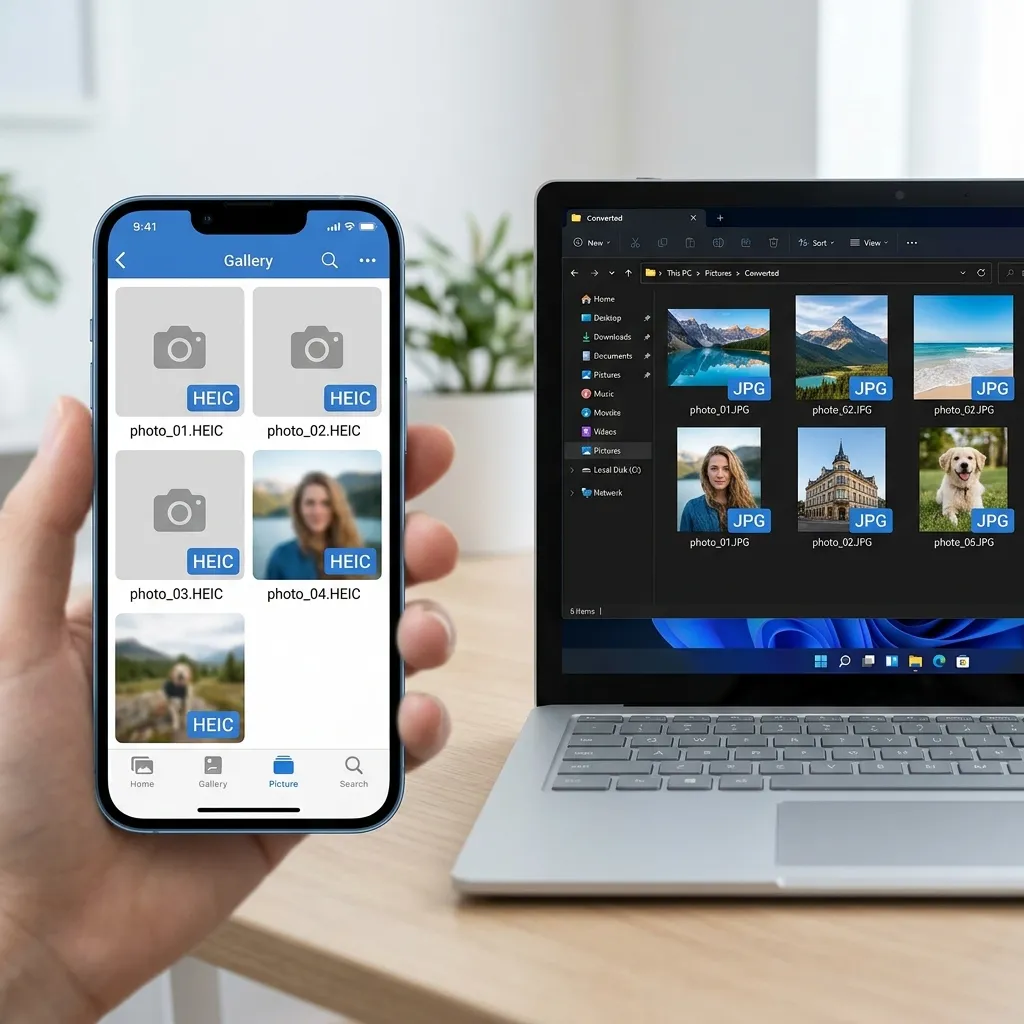
You just transferred photos from your iPhone to your Windows PC and suddenly none of them will open. The files have a strange .heic extension instead of the familiar .jpg — and your photo viewer, Word document, and email client all refuse to display them. This frustrating compatibility gap is incredibly common. To fix it quickly, you need to convert your files from HEIC to JPG so that they can be viewed on any device without specialized software.
This issue stems from a major change made by Apple, prioritizing storage space over universal compatibility. In this guide, we'll explain why this format is causing you trouble, why you shouldn't use traditional cloud-based conversion tools for your personal photos, and how to safely convert your files from HEIC to JPG directly on your device.
  <h2>What is HEIC Format?</h2>
  <p>HEIC stands for High Efficiency Image Container. It has been Apple's default image format since iOS 11 was released in 2017.</p>
  <p>This format relies on advanced HEVC (High Efficiency Video Coding) compression technology. Because of this modern compression standard, a HEIC image can deliver nearly double the visual quality of an older format while occupying the exact same file size. Conversely, it can maintain the same visual quality while cutting the required storage space in half.</p>
  <p>The problem is that only Apple devices natively support it. Unless you are entirely within the Apple ecosystem, these files are effectively useless. If you try to open them on a Windows PC, the default photo viewer will prompt you to purchase a paid codec ($0.99 from the Microsoft Store) just to look at your own pictures. Furthermore, Android devices, popular web applications, content management systems like WordPress, and productivity tools like Google Docs simply do not support HEIC natively.</p>
  <p>Here is a quick breakdown of how these formats compare:</p>

  <div class="table-responsive my-4">
    <table class="table table-bordered">
      <thead class="table-light">
        <tr>
          <th>Feature</th>
          <th>HEIC</th>
          <th>JPG</th>
        </tr>
      </thead>
      <tbody>
        <tr>
          <td>File Size</td>
          <td>~50% smaller</td>
          <td>Baseline standard</td>
        </tr>
        <tr>
          <td>Image Quality</td>
          <td>Superior (HEVC)</td>
          <td>Good</td>
        </tr>
        <tr>
          <td>Apple Support</td>
          <td>✅ Native</td>
          <td>✅ Native</td>
        </tr>
        <tr>
          <td>Windows Support</td>
          <td>❌ Requires paid codec</td>
          <td>✅ Native</td>
        </tr>
        <tr>
          <td>Android Support</td>
          <td>❌ Not supported</td>
          <td>✅ Native</td>
        </tr>
        <tr>
          <td>Web Browser Support</td>
          <td>⚠️ Safari only</td>
          <td>✅ All browsers</td>
        </tr>
        <tr>
          <td>Email Attachments</td>
          <td>⚠️ Often broken</td>
          <td>✅ Universal</td>
        </tr>
        <tr>
          <td>Social Media Upload</td>
          <td>⚠️ Platform dependent</td>
          <td>✅ Universal</td>
        </tr>
      </tbody>
    </table>
  </div>

  <h2>Why People Need to Convert HEIC to JPG</h2>
  <p>Despite the technical superiority of Apple's proprietary format, the reality of living in a multi-platform world forces most users to seek out ways to convert HEIC to JPG on a regular basis.</p>
  <p>Consider the everyday scenarios where compatibility issues bring your workflow to a halt. If you are sending family photos to relatives who use Android phones, they will likely receive unopenable attachments. If you are an e-commerce seller trying to upload product photos to Shopify or WooCommerce, the platform will flat-out reject the files. Attaching a headshot to a job application, submitting digital forms, or sharing files in a corporate environment filled with Windows PCs all require the universal compatibility of a standard image file. Even physical photo kiosks at local stores will fail to recognize the files on your flash drive unless they are properly converted first.</p>

  <h2>Privacy Risk of Online Converters</h2>
  <p>When faced with a stubborn file format, most people immediately search for an online HEIC to JPG converter. However, using these standard cloud tools introduces a massive privacy risk.</p>
  <p>Most online file converters operate by uploading your data to their remote servers. Whether you are converting personal family pictures, confidential medical documents, or proprietary business product shots, you are handing those files over to a stranger's server. Many of these common converter websites state in the fine print of their privacy policies that they will retain your files for "24-48 hours"—and sometimes even longer. During that time, your unencrypted images are sitting on a third-party server, vulnerable to breaches, employee snooping, or being used to train machine learning models.</p>
  <p>By contrast, the NoStorePDF <a href="/heic-to-jpg">HEIC to JPG</a> converter processes everything locally. Thanks to advanced browser technology, there is zero upload happening and zero server storage involved, meaning your files are converted privately.</p>

  <h2>Step-by-Step: Convert HEIC to JPG</h2>
  <p>Converting your iPhone photos into a universally accepted format is incredibly simple and perfectly secure when using the right tool. By running the conversion directly in your web browser, you maintain complete ownership of your images.</p>
  <p>Here is the exact process to securely convert HEIC to JPG:</p>
  <ol>
    <li><strong>Open the Tool:</strong> Navigate to the <a href="/heic-to-jpg">HEIC to JPG</a> utility at NoStorePDF.</li>
    <li><strong>Select Your Files:</strong> Drag and drop your .heic file (or multiple files) into the designated upload area. Alternatively, click the area to browse your local file system.</li>
    <li><strong>Verify Local Processing:</strong> The file loads into the interface instantly. Because there is no upload happening, there is no loading bar or waiting period (you can even confirm this by opening your browser's Network tab if you are curious).</li>
    <li><strong>Convert:</strong> Click the "Convert to JPG" button. The tool immediately transcodes the image using your computer's own processing power.</li>
    <li><strong>Download:</strong> Click the download button to save your newly converted .jpg file to your device.</li>
    <li><strong>Optimize (Optional):</strong> If you are preparing these images for a website and need an even smaller file size to improve load times, you can immediately run the converted file through our <a href="/image-compressor">Image Compressor</a>.</li>
  </ol>
  <p><em>Note: If you are converting a graphic or logo and need to preserve a transparent background, converting to a lossy format won't work. In that case, you should use our local <a href="/heic-to-png">HEIC to PNG</a> tool instead.</em></p>

  <h2>How to Prevent HEIC in Future</h2>
  <p>If you find yourself constantly needing to convert your images, you can actually change your iPhone camera settings to prevent the issue from happening in the first place. You can force your phone to shoot in a universally compatible format natively.</p>
  <p>To do this, open your iPhone's <strong>Settings</strong> app. Scroll down and tap on <strong>Camera</strong>, then select <strong>Formats</strong>. You will see two options: "High Efficiency" and "Most Compatible". Select <strong>Most Compatible</strong>.</p>
  <p>There is a slight tradeoff to making this change. Because you are no longer utilizing Apple's advanced HEVC compression, your new photos will have slightly larger file sizes and will consume your iCloud storage slightly faster. However, if you frequently share your images with Windows or Android users, the convenience of universal compatibility far outweighs the minor storage penalty.</p>

  <h2>Pro Tips</h2>
  <p>To streamline your file management workflow and avoid future headaches, keep these professional tips in mind:</p>
  <ul>
    <li><strong>Batch convert to save time:</strong> Our <a href="/heic-to-jpg">HEIC to JPG</a> tool allows you to drag and drop multiple files simultaneously, converting entire folders of vacation photos in seconds.</li>
    <li><strong>Pre-convert for Windows:</strong> If you are emailing attachments to a corporate environment, always convert the files first. Never assume the recipient has purchased the necessary Windows codecs.</li>
    <li><strong>Format for social media:</strong> While some platforms auto-convert mobile uploads, standard web uploads often fail. Sticking to standard formats is universally accepted.</li>
    <li><strong>Adjust dimensions post-conversion:</strong> After you have successfully converted your images, use a secure <a href="/resize-image">Resize Image</a> tool to ensure the pixel dimensions fit the specific requirements of the platform or document you are uploading to.</li>
  </ul>

  <h2>Frequently Asked Questions</h2>
  <div>
    <div class="mb-3 mt-4">
      <h3 class="h5 fw-bold">Why does my iPhone save photos as HEIC instead of JPG?</h3>
      <div>
        <p>Apple made this the default format in 2017 to save storage space. The advanced compression algorithm allows iPhones to store high-quality images at roughly half the file size of older formats, freeing up space on your device and in your iCloud account.</p>
      </div>
    </div>
    <div class="mb-3">
      <h3 class="h5 fw-bold">Does converting HEIC to JPG reduce photo quality?</h3>
      <div>
        <p>It can, slightly. Converting involves taking an image compressed with one algorithm and re-compressing it with another. While the visual difference is usually imperceptible to the human eye, you are technically moving from a high-efficiency container to an older, lossy standard.</p>
      </div>
    </div>
    <div class="mb-3">
      <h3 class="h5 fw-bold">Can I open HEIC files on Windows without converting?</h3>
      <div>
        <p>Yes, but it requires extra steps. You must download the "HEVC Video Extensions" from the Microsoft Store, which currently costs $0.99. Once installed, the native Windows Photos app will be able to render the images properly.</p>
      </div>
    </div>
    <div class="mb-3">
      <h3 class="h5 fw-bold">Is HEIC better than JPG?</h3>
      <div>
        <p>From a purely technical standpoint, yes. It offers superior image quality at significantly smaller file sizes, supports 16-bit color (compared to 8-bit), and can store multiple images (like Live Photos) in a single container. However, it is far worse when it comes to software compatibility.</p>
      </div>
    </div>
    <div class="mb-3">
      <h3 class="h5 fw-bold">Can I convert HEIC to JPG on my iPhone directly?</h3>
      <div>
        <p>Yes. The easiest native way is to open the Files app, copy the photo from your Photos app, and paste it into a folder within the Files app. iOS will automatically convert the pasted image into a compatible format during the transfer.</p>
      </div>
    </div>
    <div class="mb-3">
      <h3 class="h5 fw-bold">What is the difference between HEIC and HEIF?</h3>
      <div>
        <p>HEIF (High Efficiency Image Format) is the overarching technical standard developed by the MPEG group. HEIC is simply the specific file extension and implementation that Apple chose to use for this standard on their devices. They are functionally the same thing.</p>
      </div>
    </div>
  </div>

  <h2>Conclusion</h2>
  <p>While Apple's proprietary image format is undeniably a technical marvel for saving storage space, it remains practically incompatible with most of the digital world outside of the iOS and macOS ecosystems. Until universal support arrives for Windows, Android, and all major web platforms, managing your iPhone photos will require a middle step.</p>
  <p>Converting your files remains the most reliable and foolproof solution for sharing and uploading. By using a secure, browser-based <a href="/heic-to-jpg">HEIC to JPG</a> converter, you can guarantee that your files will open flawlessly on any device while keeping your personal photos completely private and off third-party servers.</p>