Convert SVG to PNG Without Losing Quality
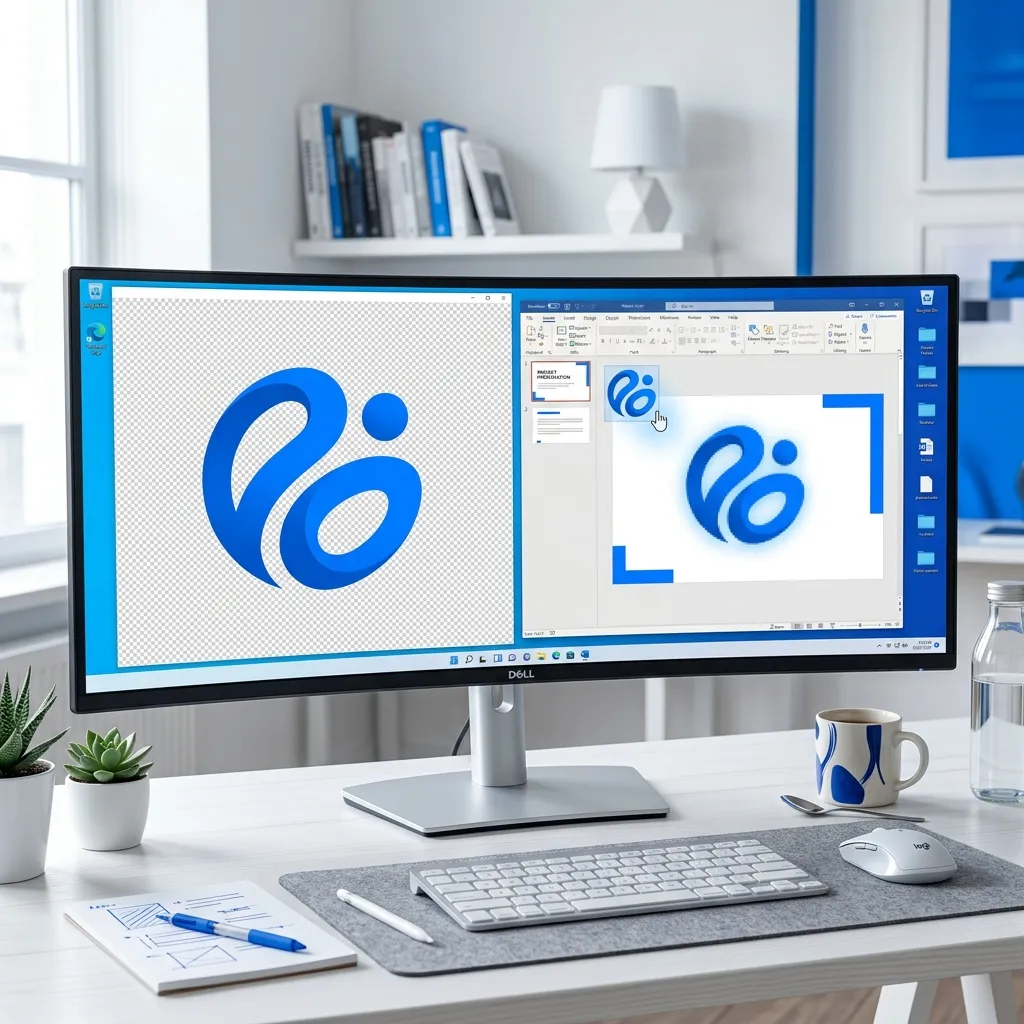
Your company logo is a perfect, razor-sharp SVG file. It looks utterly flawless at any size—you can scale it up to fit on a massive highway billboard or shrink it down to a tiny website favicon, and it stays absolutely crystal clear. Then, reality hits. Someone asks you to paste that perfect logo into a standard Microsoft Word document, upload it to a new WordPress post, or attach it to an email signature. Suddenly, the file either displays as a broken image icon or refuses to load entirely.
This scenario is a daily headache for professionals across all industries. While SVG is universally recognized as the absolute gold standard for vector graphics, its compatibility outside of web browsers and professional design tools is severely limited. To bridge this gap, designers and marketers constantly need to convert their SVG assets to PNG files for real-world applications. In this guide, we will explain exactly why these formats differ and how to securely convert your files without losing a single pixel of quality.
  <h2>What is SVG and Why is it Different?</h2>
  <p>To understand why compatibility issues exist, you first must understand how the file formats fundamentally differ from one another under the hood.</p>
  <p>SVG stands for Scalable Vector Graphics. It is an XML-based format that operates completely differently than traditional image files. Unlike standard raster formats (such as JPG, PNG, or WebP) which store fixed grids of colored pixels, an SVG file actually stores mathematical instructions. It uses code to define paths, shapes, curves, coordinates, and colors. Because it relies on math rather than fixed pixels, an SVG is infinitely scalable. It can be resized to any dimension without a single drop in visual quality—this is its ultimate superpower.</p>
  <p>Because SVG files only store code rather than millions of pixels, their file sizes are often incredibly tiny. A complex corporate logo might be a mere 5KB as an SVG, but could balloon to 500KB when exported as a high-resolution PNG.</p>
  <p>The primary issue with SVG is ecosystem support. While all modern web browsers (Chrome, Safari, Edge, Firefox) render SVG math natively and perfectly, other software struggles. Microsoft Office applications like Word, Excel, and PowerPoint only offer partial, often buggy support. The vast majority of email clients aggressively strip or block inline SVG files entirely for security reasons (since SVGs are XML code, they can theoretically harbor malicious scripts). Furthermore, major social media platforms like Instagram, Twitter/X, and Facebook completely reject SVG uploads. Even the default WordPress media library blocks SVG uploads out-of-the-box for those exact same security concerns.</p>

  <h3>SVG vs PNG vs JPG vs WebP Comparison Table</h3>
  <p>To help you navigate these formats, here is a breakdown of how they compare across critical everyday use cases:</p>

  <div class="table-responsive my-4">
    <table class="table table-bordered">
      <thead class="table-light">
        <tr>
          <th>Feature</th>
          <th>SVG</th>
          <th>PNG</th>
          <th>JPG</th>
          <th>WebP</th>
        </tr>
      </thead>
      <tbody>
        <tr>
          <td>Scalability</td>
          <td>♾️ Infinite</td>
          <td>❌ Fixed pixels</td>
          <td>❌ Fixed pixels</td>
          <td>❌ Fixed pixels</td>
        </tr>
        <tr>
          <td>File Size (logo)</td>
          <td>✅ Tiny (5-20KB)</td>
          <td>⚠️ Large (100-500KB)</td>
          <td>✅ Small (20-80KB)</td>
          <td>✅ Smallest (15-60KB)</td>
        </tr>
        <tr>
          <td>Transparency</td>
          <td>✅ Yes</td>
          <td>✅ Yes</td>
          <td>❌ No</td>
          <td>✅ Yes</td>
        </tr>
        <tr>
          <td>Email Support</td>
          <td>❌ Blocked</td>
          <td>✅ Universal</td>
          <td>✅ Universal</td>
          <td>⚠️ Partial</td>
        </tr>
        <tr>
          <td>Word/PPT Support</td>
          <td>⚠️ Partial</td>
          <td>✅ Universal</td>
          <td>✅ Universal</td>
          <td>❌ Poor</td>
        </tr>
        <tr>
          <td>Social Media</td>
          <td>❌ Not accepted</td>
          <td>✅ Universal</td>
          <td>✅ Universal</td>
          <td>⚠️ Partial</td>
        </tr>
        <tr>
          <td>WordPress</td>
          <td>❌ Blocked default</td>
          <td>✅ Native</td>
          <td>✅ Native</td>
          <td>✅ Native</td>
        </tr>
        <tr>
          <td>Photo quality</td>
          <td>❌ Not for photos</td>
          <td>⚠️ Large files</td>
          <td>✅ Excellent</td>
          <td>✅ Excellent</td>
        </tr>
        <tr>
          <td>Browser rendering</td>
          <td>✅ Native</td>
          <td>✅ Native</td>
          <td>✅ Native</td>
          <td>✅ Native</td>
        </tr>
      </tbody>
    </table>
  </div>

  <h2>When to Convert SVG to PNG</h2>
  <p>Because of the severe compatibility limitations of vector graphics in everyday software, there are dozens of specific, real-world scenarios where you must transition to a raster format.</p>
  <p>The most common trigger is office software. If you are adding a corporate logo to a Microsoft Word letterhead or embedding charts into a PowerPoint presentation, a PNG is essentially mandatory to ensure the document looks correct on the recipient's computer. The same applies to email marketing; because clients like Outlook and Apple Mail often block vectors, your email signature logo must be a PNG.</p>
  <p>Web management is another major factor. Uploading brand assets to content management systems like WordPress, Webflow, or Squarespace often requires PNGs. Additionally, if you are setting up OpenGraph (og:image) meta tags so your links look good when shared in iMessage or on Slack, browsers and messaging apps do not reliably render SVG previews. Profile pictures and social media headers on LinkedIn, Twitter/X, and Instagram strictly require raster formats. Finally, submitting your logo to traditional print shops or uploading app store screenshots will almost always require you to convert the file first.</p>

  <h2>How to Convert SVG to PNG (Step-by-Step)</h2>
  <p>Converting a vector file to a raster file requires a specific approach. Because SVGs do not have a fixed "size" until they are rendered, you must define the output resolution during the conversion process to ensure a sharp result.</p>
  <p>Here is how to do it flawlessly using the NoStorePDF <a href="/svg-to-png">SVG to PNG</a> tool:</p>
  <ol>
    <li><strong>Access the Tool:</strong> Open the <a href="/svg-to-png">SVG to PNG</a> converter in your web browser.</li>
    <li><strong>Load Your Vector:</strong> Drag and drop your .svg file directly into the interface. Because the tool operates locally within your browser, there is zero uploading involved. Your proprietary brand assets never touch a third-party server.</li>
    <li><strong>Set Output Dimensions:</strong> This is the most crucial step. Unlike raster-to-raster conversion, SVG is resolution-independent. You must manually choose the specific pixel dimensions of the output PNG. For a standard logo, aim for a minimum of 1000x1000px (remember, you can always scale a large PNG down later, but you can never scale a small PNG up without ruining the quality). For social media headers, match the platform's exact specifications (e.g., LinkedIn requires 1584x396px).</li>
    <li><strong>Convert Locally:</strong> Click the convert button. The browser renders the math of the SVG into a fixed pixel grid based on your chosen dimensions.</li>
    <li><strong>Download:</strong> Save the resulting PNG file to your device. Any transparent backgrounds in the original SVG are preserved automatically in the PNG.</li>
    <li><strong>Optimize (Optional):</strong> If your newly minted high-resolution PNG is too large in file size for web use, immediately run it through an <a href="/image-compressor">Image Compressor</a> to reduce the weight while maintaining visual quality.</li>
  </ol>

  <h2>Converting SVG to Other Formats</h2>
  <p>While PNG is the most universally accepted format for graphics with transparency, there are specific scenarios where alternative formats are actually better suited for the job.</p>
  <p>If you are exporting a vector graphic that does not have a transparent background (for instance, an illustration on a solid white canvas), and file size is your absolute top priority, you should use an <a href="/svg-to-jpg">SVG to JPG</a> converter instead. JPG files are significantly smaller than PNG files, making them better for load times, though they cannot support transparency.</p>
  <p>If you are exporting icons or graphics exclusively for modern web design, you should use an <a href="/svg-to-webp">SVG to WebP</a> converter. WebP is a modern image format that supports transparency just like PNG, but typically results in file sizes that are 25-30% smaller, and it is universally supported by all modern web browsers.</p>

  <h2>What Resolution/Size Should Your PNG Be?</h2>
  <p>The single most common mistake users make when converting from vector to raster is exporting the file at too low of a resolution. Once the file becomes a PNG, the pixels are permanently locked. If you try to stretch it later, it will become blurry and pixelated.</p>
  <p>Use this quick reference guide to determine exactly what size you need before you convert:</p>

  <div class="table-responsive my-4">
    <table class="table table-bordered">
      <thead class="table-light">
        <tr>
          <th>Use Case</th>
          <th>Recommended PNG Size</th>
          <th>Notes</th>
        </tr>
      </thead>
      <tbody>
        <tr>
          <td>Email signature logo</td>
          <td>200x60px (2x = 400x120)</td>
          <td>Use 2x for retina/high-DPI screens</td>
        </tr>
        <tr>
          <td>LinkedIn profile picture</td>
          <td>400x400px minimum</td>
          <td>Requires a square crop</td>
        </tr>
        <tr>
          <td>Twitter/X header</td>
          <td>1500x500px</td>
          <td>Extremely wide banner format</td>
        </tr>
        <tr>
          <td>Instagram post</td>
          <td>1080x1080px</td>
          <td>Standard square feed post</td>
        </tr>
        <tr>
          <td>PowerPoint slide</td>
          <td>1920x1080px</td>
          <td>Standard Full HD widescreen format</td>
        </tr>
        <tr>
          <td>Print (business card)</td>
          <td>300 DPI equivalent</td>
          <td>~1050x600px for a standard 3.5x2 card</td>
        </tr>
        <tr>
          <td>Favicon</td>
          <td>512x512px</td>
          <td>Browsers will scale this down automatically</td>
        </tr>
        <tr>
          <td>WordPress hero image</td>
          <td>1920px wide</td>
          <td>Match your theme's max-width setting</td>
        </tr>
      </tbody>
    </table>
  </div>
  <p><em>Pro Tip:</em> Always export your PNG at the largest size you will ever conceivably need for a given project. If the file is too large for a specific implementation down the road, you can easily use a <a href="/resize-image">Resize Image</a> tool to perfectly scale the large PNG down to a smaller dimension without losing sharpness.</p>

  <h2>Pro Tips for Designers and Marketers</h2>
  <p>To ensure your brand assets always look perfect across every medium, follow these professional workflows:</p>
  <ul>
    <li><strong>The 2x Rule:</strong> Always convert your graphics at exactly 2x (double) the pixel size of your intended display size. High-resolution Retina displays (found on modern MacBooks and iPhones) require double the pixel density to look sharp.</li>
    <li><strong>Preserve the Master File:</strong> Your original SVG is your master blueprint. Never delete it, and never use a PNG as the source file to recreate a logo.</li>
    <li><strong>Print Dimensions:</strong> If you are sending a file to a commercial printer, always ask them what DPI (dots per inch) they require, and calculate your pixel dimensions accordingly before exporting.</li>
    <li><strong>Batch Processing:</strong> If you have an entire folder of UI icons to export for a development team, save time by dragging them all into the <a href="/svg-to-png">SVG to PNG</a> tool simultaneously to batch convert them.</li>
  </ul>

  <h2>Frequently Asked Questions</h2>
  <div>
    <div class="mb-3 mt-4">
      <h3 class="h5 fw-bold">Does converting SVG to PNG reduce quality?</h3>
      <div>
        <p>It depends entirely on the resolution you choose during export. If you export the SVG to a large pixel dimension (like 2000x2000px), the resulting PNG will be perfectly sharp and high-quality. If you export it at a tiny dimension and try to stretch it later, the quality will be ruined.</p>
      </div>
    </div>
    <div class="mb-3">
      <h3 class="h5 fw-bold">Can I convert SVG to PNG with a transparent background?</h3>
      <div>
        <p>Yes, absolutely. Both SVG and PNG formats natively support the alpha channel (transparency). As long as your original SVG does not have a solid background color drawn into it, the resulting PNG will remain perfectly transparent.</p>
      </div>
    </div>
    <div class="mb-3">
      <h3 class="h5 fw-bold">What size PNG should I export from an SVG?</h3>
      <div>
        <p>You should export the PNG at exactly the pixel dimensions required by your final destination (e.g., 1080x1080 for Instagram), or double that size if you are optimizing for Retina displays on the web.</p>
      </div>
    </div>
    <div class="mb-3">
      <h3 class="h5 fw-bold">Why is my converted PNG blurry?</h3>
      <div>
        <p>Your PNG is blurry because you exported it at a pixel resolution that was too small, and the software you pasted it into (like Word or a web browser) was forced to stretch the limited number of pixels to fill a larger space. Re-convert the original SVG at a much larger pixel dimension.</p>
      </div>
    </div>
    <div class="mb-3">
      <h3 class="h5 fw-bold">Can I convert animated SVG to PNG?</h3>
      <div>
        <p>No. PNG is a static image format (excluding the rare APNG format). If you attempt to convert an animated SVG, the converter will simply render and export the very first frame of the animation as a static, unmoving image.</p>
      </div>
    </div>
    <div class="mb-3">
      <h3 class="h5 fw-bold">Why won't my SVG file upload to WordPress?</h3>
      <div>
        <p>WordPress core blocks SVG uploads by default for strict security reasons, as SVG files are essentially XML code that can be manipulated to carry malicious scripts. To use the graphic on WordPress, you must either install a specific security plugin to sanitize SVGs, or simply convert the file to a secure PNG first.</p>
      </div>
    </div>
  </div>

  <h2>Conclusion</h2>
  <p>SVG remains the undisputed champion for vector graphics within professional design tools and modern web browsers. However, PNG remains the universal, unquestioned language of the broader web, social media, and office productivity software.</p>
  <p>Understanding when to use the infinite scalability of a vector and when to lock those paths into the fixed pixels of a raster image is a crucial skill for modern digital work. Whenever you encounter a compatibility roadblock, rely on a secure, browser-based <a href="/svg-to-png">SVG to PNG</a> converter to seamlessly translate your perfect vector designs into universally accepted files in a matter of seconds.</p>