Convert PDF to JPG Locally in Browser
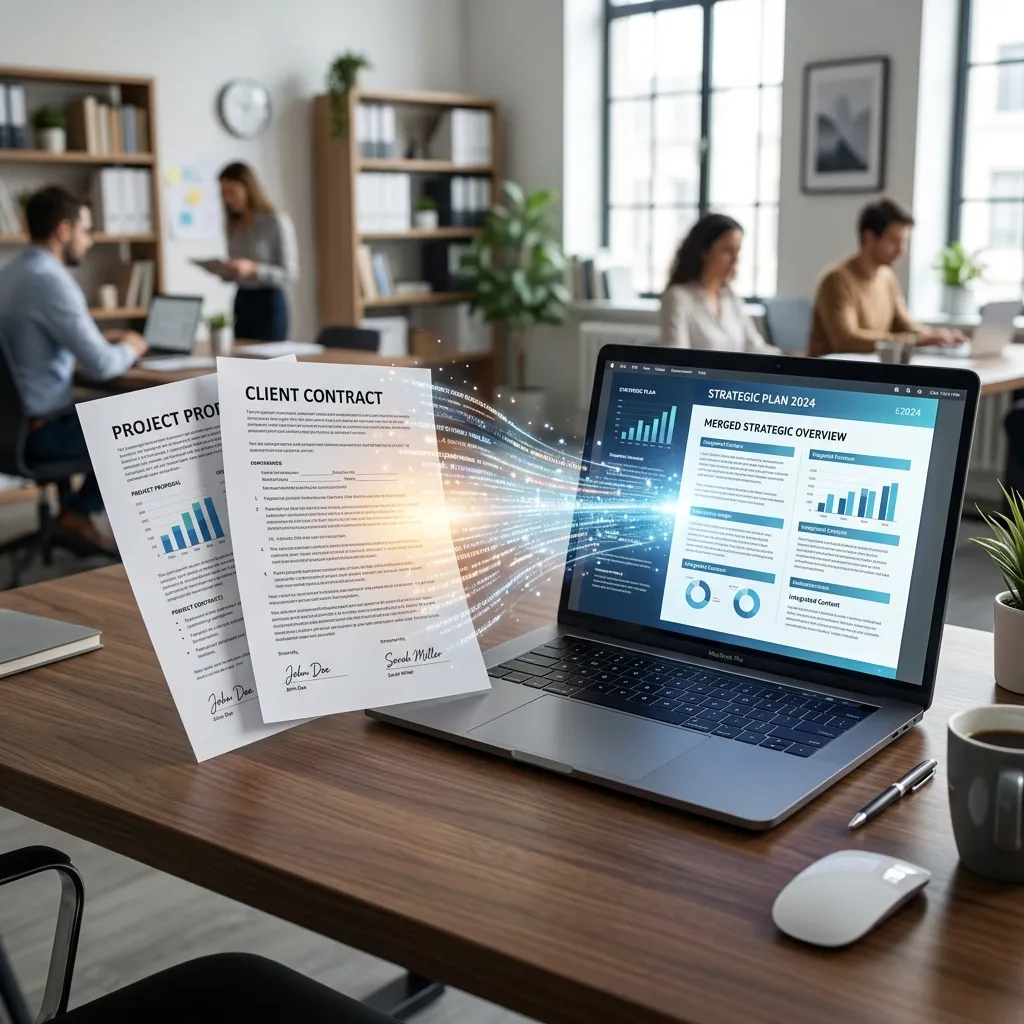
PDF files are one of the most widely used document formats in the world. However, there are many situations where you may need to convert pdf pages to images.
For example: sharing document previews, creating presentation slides, uploading pages to websites, posting content on social media, extracting pages from reports, or saving scanned documents as images.
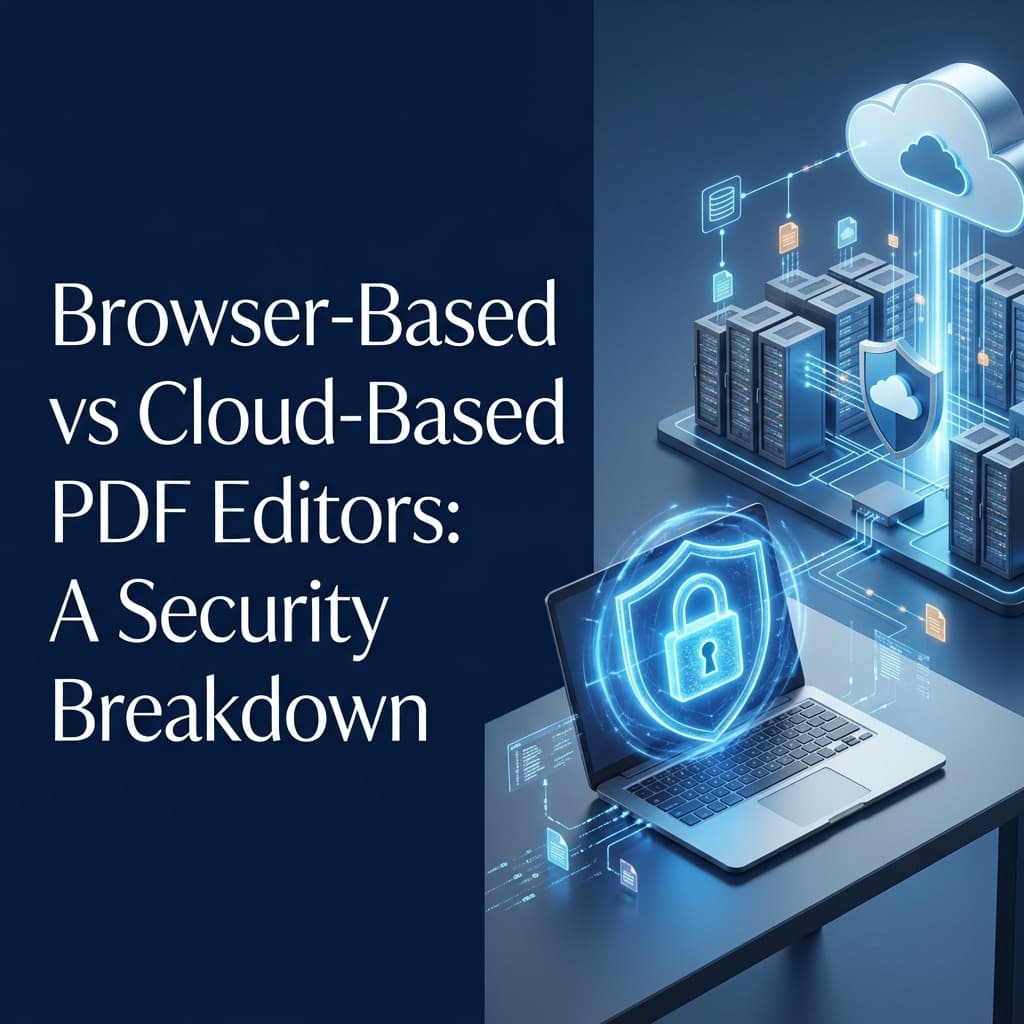
Most people search for an pdf to jpg online tool and upload their files to a remote server. But is that really necessary?
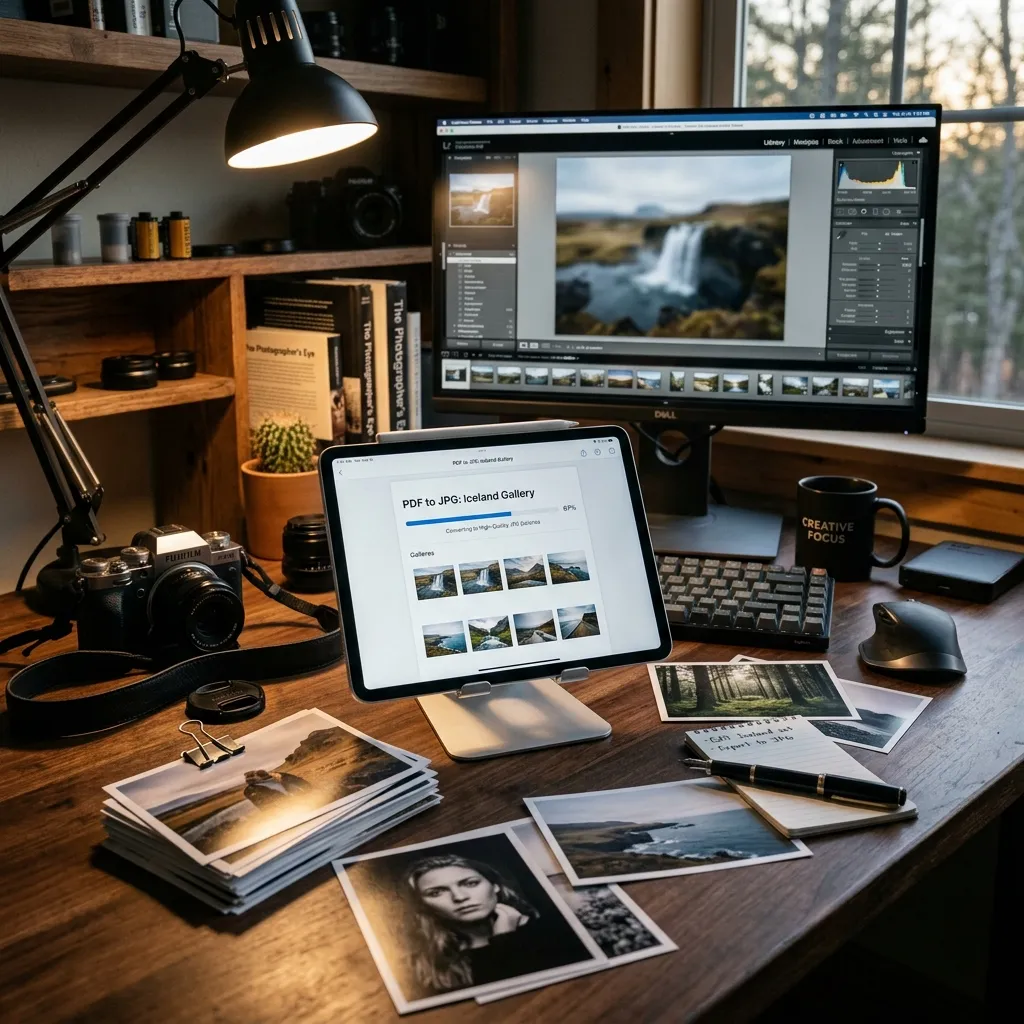
Modern browser technology now makes it possible to convert pdf to jpg directly on your device without uploading them anywhere.
In this guide, you'll learn how PDF to JPG conversion works, why local processing matters, and how a browser based pdf converter can improve privacy, speed, and security.
  <h2>What Is PDF to JPG Conversion?</h2>
  <p>A <strong>pdf to jpg converter</strong> transforms one or more pages from a PDF document into image files.</p>
  <p>Each PDF page becomes a separate image file. For example:</p>
  <div class="bg-light p-3 rounded-3 mb-3 border font-monospace small">
    page-1.jpg<br>
    page-2.jpg<br>
    page-3.jpg
  </div>
  <p>The resulting images can be viewed, edited, shared, or uploaded independently. This process is useful when you need visual access to PDF content without requiring a PDF reader.</p>

  <h2>Why Convert PDF Pages to JPG?</h2>
  <div class="row g-4 my-4">
    <div class="col-md-6">
      <div class="p-4 border rounded-4 bg-light h-100">
        <h3 class="h5 fw-bold">Easier Sharing</h3>
        <p class="text-muted small mb-0">Many platforms display images more easily than PDFs, such as WhatsApp, Instagram, Facebook, LinkedIn, and PowerPoint.</p>
      </div>
    </div>
    <div class="col-md-6">
      <div class="p-4 border rounded-4 bg-light h-100">
        <h3 class="h5 fw-bold">Better Compatibility</h3>
        <p class="text-muted small mb-0">Almost every device can open JPG files instantly without needing specialized apps.</p>
      </div>
    </div>
    <div class="col-md-6">
      <div class="p-4 border rounded-4 bg-light h-100">
        <h3 class="h5 fw-bold">Content Reuse</h3>
        <p class="text-muted small mb-0">Designers and marketers often extract charts, infographics, reports, and presentations from PDFs as images.</p>
      </div>
    </div>
    <div class="col-md-6">
      <div class="p-4 border rounded-4 bg-light h-100">
        <h3 class="h5 fw-bold">Faster Previews</h3>
        <p class="text-muted small mb-0">Image previews load much faster than large PDF files on websites and blogs.</p>
      </div>
    </div>
  </div>

  <h2>Traditional PDF to JPG Conversion</h2>
  <p>Most online converters work like this:</p>
  <ol>
    <li>Upload PDF</li>
    <li>Wait for upload</li>
    <li>Server processes document</li>
    <li>Images generated</li>
    <li>Download JPG files</li>
  </ol>
  <p>Although convenient, this approach introduces privacy concerns. Your files must leave your device before conversion can begin.</p>

  <h2>Browser-Based PDF to JPG Conversion</h2>
  <p>Modern web technologies allow conversion directly inside the browser using a local <strong>pdf to image converter</strong>.</p>

  <div class="d-flex flex-column align-items-center bg-light p-4 rounded-4 border mb-4 font-monospace">
    <div class="p-2 bg-white border rounded shadow-sm">📄 Original PDF</div>
    <div class="my-2"><i class="bi bi-arrow-down fs-4 text-primary"></i></div>
    <div class="p-2 bg-white border rounded shadow-sm border-primary text-primary">⚙️ Local Browser Processing</div>
    <div class="my-2"><i class="bi bi-arrow-down fs-4 text-primary"></i></div>
    <div class="d-flex gap-2">
      <div class="p-2 bg-white border rounded shadow-sm">🖼️ JPG 1</div>
      <div class="p-2 bg-white border rounded shadow-sm">🖼️ JPG 2</div>
    </div>
  </div>
  <p>No external upload is required. The file remains on your device throughout the entire process.</p>

  <h2>Benefits of Local PDF to JPG Conversion</h2>
  <ul>
    <li><strong>Better Privacy:</strong> Your PDF never leaves your computer. This is important for business reports, contracts, legal documents, medical records, and financial statements.</li>
    <li><strong>Faster Processing:</strong> There is no need to wait for large uploads. The browser can begin processing immediately.</li>
    <li><strong>Improved Security:</strong> Since files remain local, there is no external storage, no third-party access, and reduced data exposure.</li>
    <li><strong>Greater Control:</strong> You remain in full control of your documents throughout the conversion process.</li>
  </ul>

  <h2>Common Use Cases</h2>
  <p><strong>Marketing Teams:</strong> Convert reports and presentations into social media graphics.</p>
  <p><strong>Students:</strong> Extract lecture slides and study materials.</p>
  <p><strong>Businesses:</strong> Share document previews without distributing entire PDFs.</p>
  <p><strong>Designers:</strong> Reuse visual elements from PDFs in creative projects.</p>
  <p><strong>Content Creators:</strong> Turn PDF guides into image-based content for online publishing.</p>

  <h2>How PDF to JPG Conversion Works</h2>
  <p>PDF pages are rendered as images. A <a href="/pdf-to-images">PDF to Images</a> converter reads the PDF structure, renders each page, creates image output, and exports JPG files.</p>
  <p>Many tools allow users to select image quality, resolution, page range, and output format before exporting.</p>

  <h2>JPG vs PNG for PDF Conversion</h2>
  <p>Many users ask whether JPG is always the best option. A <a href="/png-converter">PNG Converter</a> might be better depending on your needs.</p>

  <div class="row g-4 mb-4">
    <div class="col-md-6">
      <div class="p-4 border rounded-4 h-100">
        <h3 class="h5 fw-bold text-primary">JPG Advantages</h3>
        <ul class="mb-0">
          <li>Smaller file sizes</li>
          <li>Faster uploads</li>
          <li>Ideal for photos, reports, and presentations</li>
        </ul>
      </div>
    </div>
    <div class="col-md-6">
      <div class="p-4 border rounded-4 h-100">
        <h3 class="h5 fw-bold text-success">PNG Advantages</h3>
        <ul class="mb-0">
          <li>Lossless quality</li>
          <li>Better text sharpness</li>
          <li>Transparent backgrounds</li>
          <li>Best for screenshots, graphics, and technical documents</li>
        </ul>
      </div>
    </div>
  </div>

  <h2>Choosing the Right Image Quality</h2>
  <p>Higher quality creates larger files. Lower quality reduces file size but may introduce compression artifacts. A balanced setting usually provides good readability, smaller files, and faster sharing. For most users, medium-to-high quality works best.</p>

  <h2>PDF to JPG for Large Documents</h2>
  <p>Large PDFs can contain hundreds of pages, high-resolution images, and complex graphics. If you need to make them smaller first, use a <a href="/compress-pdf">PDF Compressor</a>. You can also use a <a href="/split-pdf">Split PDF</a> tool to grab only the pages you want, or <a href="/merge-pdf">Merge PDF</a> if you want to convert multiple documents sequentially.</p>
  <p>Browser-based converters can process these files efficiently, although performance depends on your device specifications.</p>

  <h2>Frequently Asked Questions</h2>
  <div>
    <div class="mb-3 mt-4">
      <h3 class="h5 fw-bold">Is PDF to JPG conversion safe?</h3>
      <div>
        <p>Yes. Browser-based tools process files directly on your device, ensuring highly <strong>secure pdf to jpg conversion</strong> and completely eliminating privacy concerns.</p>
      </div>
    </div>
    <div class="mb-3">
      <h3 class="h5 fw-bold">Will image quality be reduced?</h3>
      <div>
        <p>Quality depends on the selected export settings. A high-quality <strong>pdf to image converter</strong> preserves maximum visual clarity by rendering the PDF vector instructions at a high DPI.</p>
      </div>
    </div>
    <div class="mb-3">
      <h3 class="h5 fw-bold">Can I convert multiple PDF pages at once?</h3>
      <div>
        <p>Yes. Most converters will automatically extract and export all pages as a convenient ZIP file containing separate JPG images.</p>
      </div>
    </div>
    <div class="mb-3">
      <h3 class="h5 fw-bold">Is browser-based conversion faster?</h3>
      <div>
        <p>Often yes, because absolutely no file upload or download over the internet is required. The processing speed is limited only by your computer's CPU.</p>
      </div>
    </div>
    <div class="mb-3">
      <h3 class="h5 fw-bold">Can I convert PDFs to PNG instead?</h3>
      <div>
        <p>Yes. Many <strong>pdf to jpg converter</strong> tools support both JPG and PNG output formats, allowing you to choose the best format for your specific needs.</p>
      </div>
    </div>
  </div>

  <h2>Best Practices</h2>
  <p>To achieve the best results, use high-quality source PDFs, export only required pages, choose appropriate image resolution, review images before sharing, and keep original PDFs as backups. You might also want to try <a href="/jpg-to-pdf">JPG to PDF</a> if you ever need to reverse the process.</p>

  <h2>Final Thoughts</h2>
  <p>PDF to JPG conversion remains one of the most useful document-processing tasks for students, businesses, designers, and content creators.</p>
  <p>While traditional converters require uploading files to remote servers, modern browser-based solutions allow documents to be converted directly on your device. This approach provides better privacy, faster processing, improved security, and greater control.</p>
  <p>For users who regularly work with sensitive documents, local PDF to JPG conversion offers a practical and privacy-focused alternative to traditional cloud-based tools.</p>